
Getting started as a host
This is the /client panel. It is for someone who runs their own units — one flat or
twenty — without a management company in between.
The setup guide on your dashboard walks the same five steps as this page and ticks each one off as you finish it. It disappears from the sidebar when everything essential is done, and you can reopen it from your account menu.
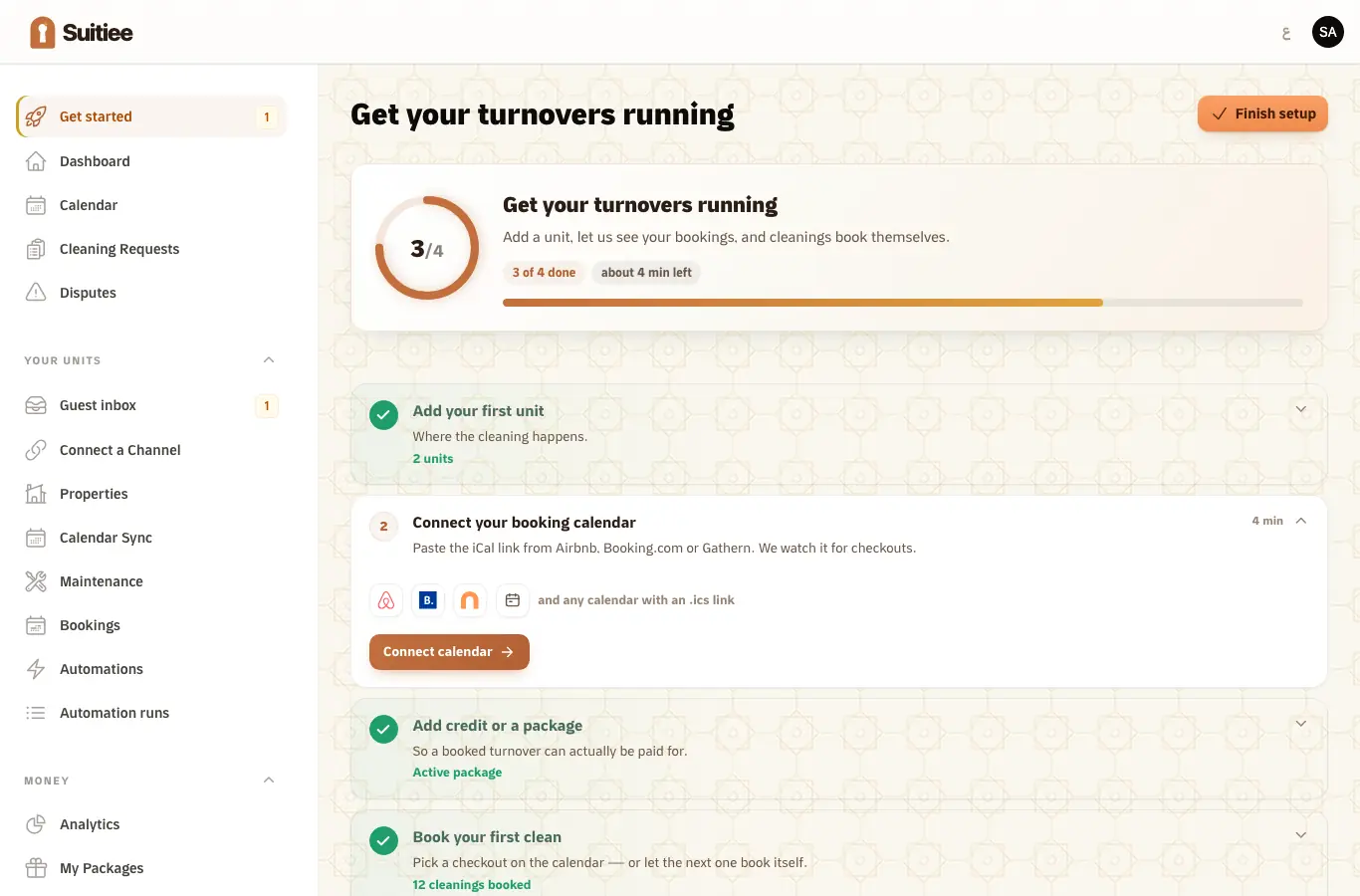
What you need
- The sign-in link and password for your host account.
- One unit's address, and how many bedrooms and bathrooms it has.
- Either the calendar export link from the site you sell on, or an account on Airbnb or Booking.com you can sign into.
- A card or a bank transfer to fund the wallet, or a prepaid package.
Step 1 — Add your unit
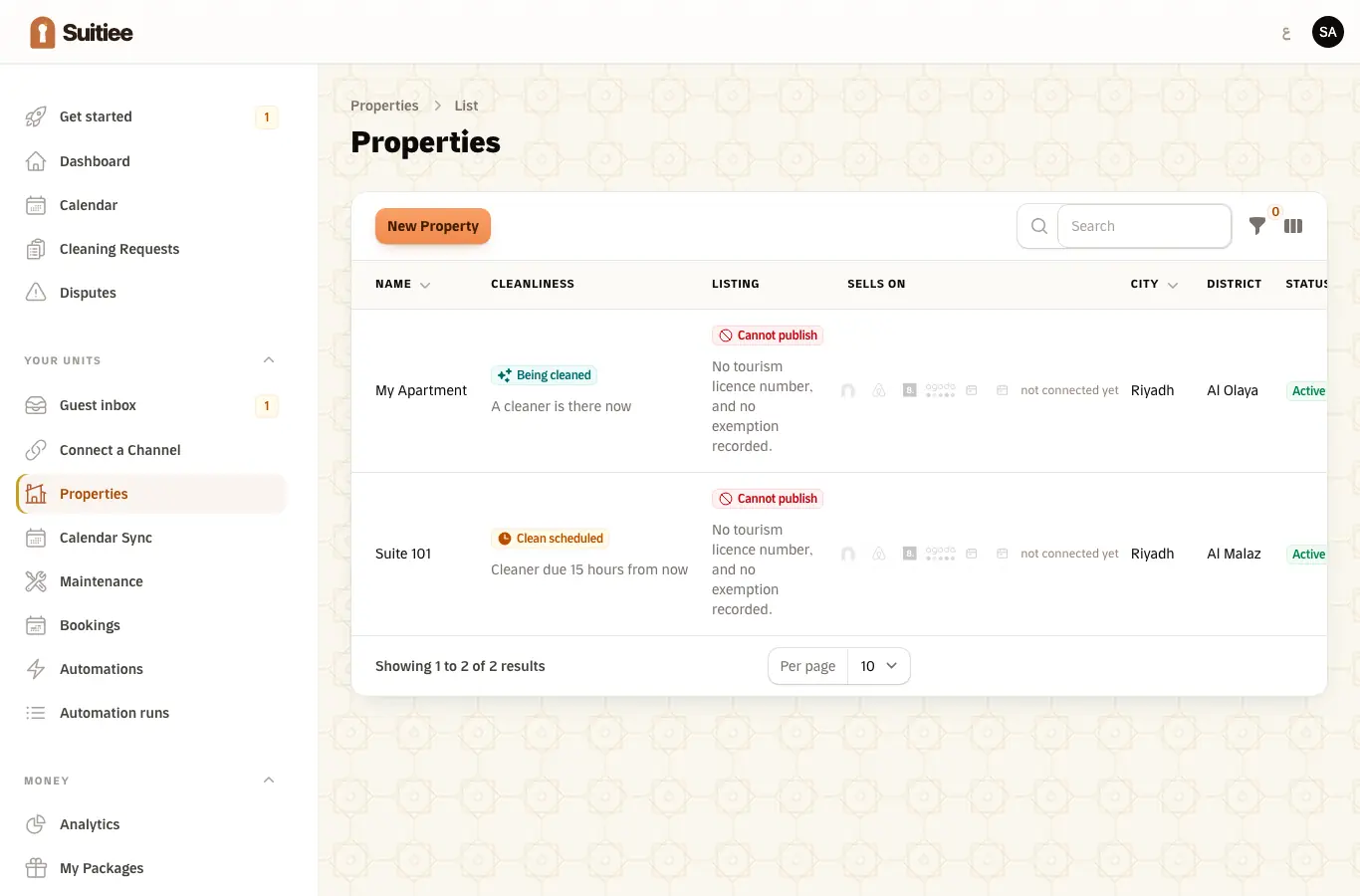
- Open Your units → Properties and press New.
- Give it a name in English and in Arabic. This is what a cleaner sees on their phone, so use the name you would say out loud — "Suite 101", not a listing id.
- Fill in the address and drop the pin. The pin is what the cleaner navigates to, and it is what a check-in a long way from the door is measured against.
- Set bedrooms, bathrooms and area. These decide what a turnover costs.
Step 2 — Let Suitiee see your bookings
Open Your units → Connect a Channel. Pick the site your unit is listed on.
- Airbnb or Booking.com — press Connect, sign in to that site inside the page, and say which of your listings this unit is. Bookings, prices and availability then stay in step in both directions.
- Anything else, including Gathern and Qotoon — paste the calendar export link the site already gives you. Suitiee reads it on a schedule.
Both routes end in the same place; neither is a lesser one.
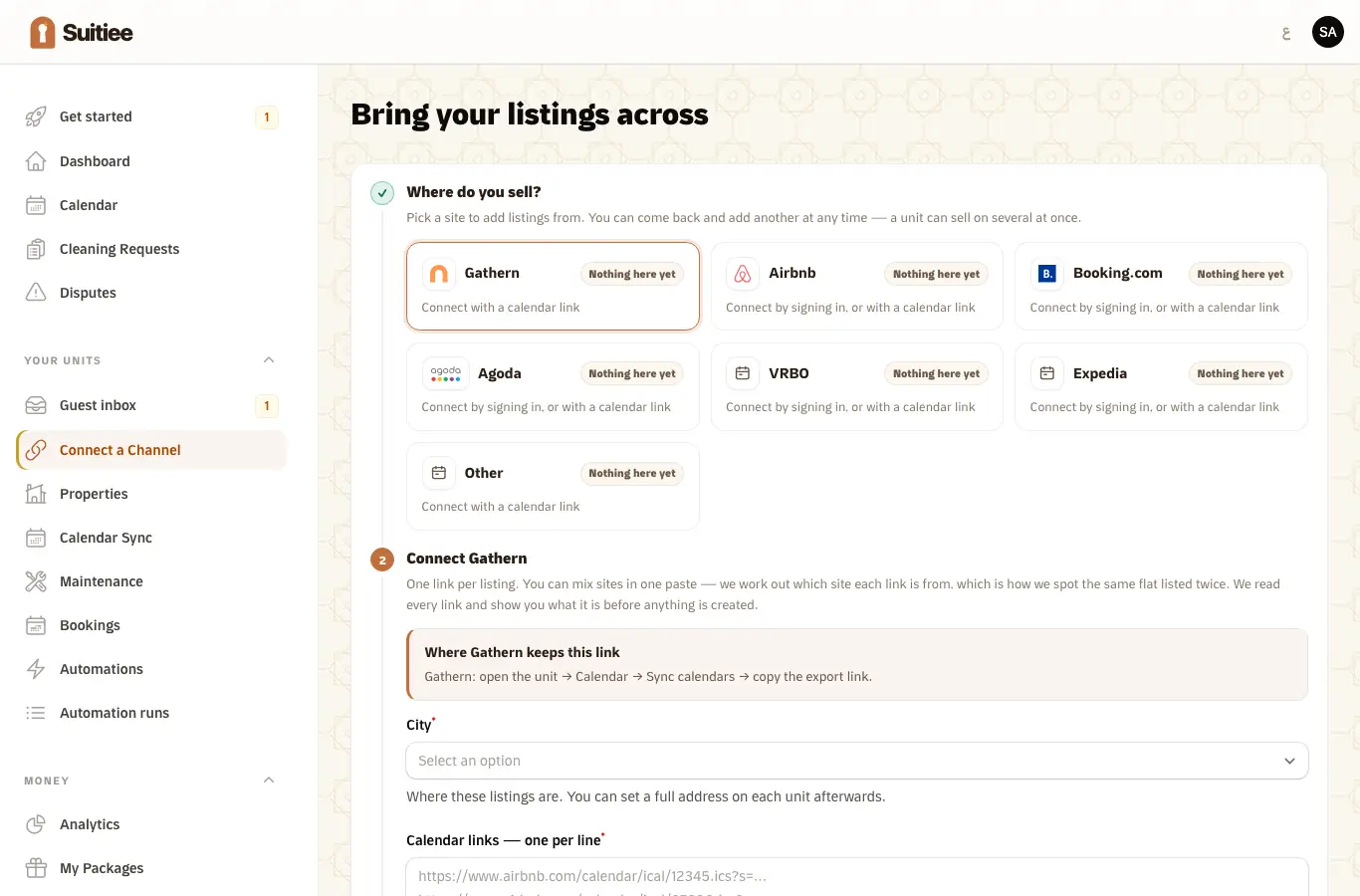
Full instructions, including where each site hides its export link, are in Calendar links.
Step 3 — Put money behind it
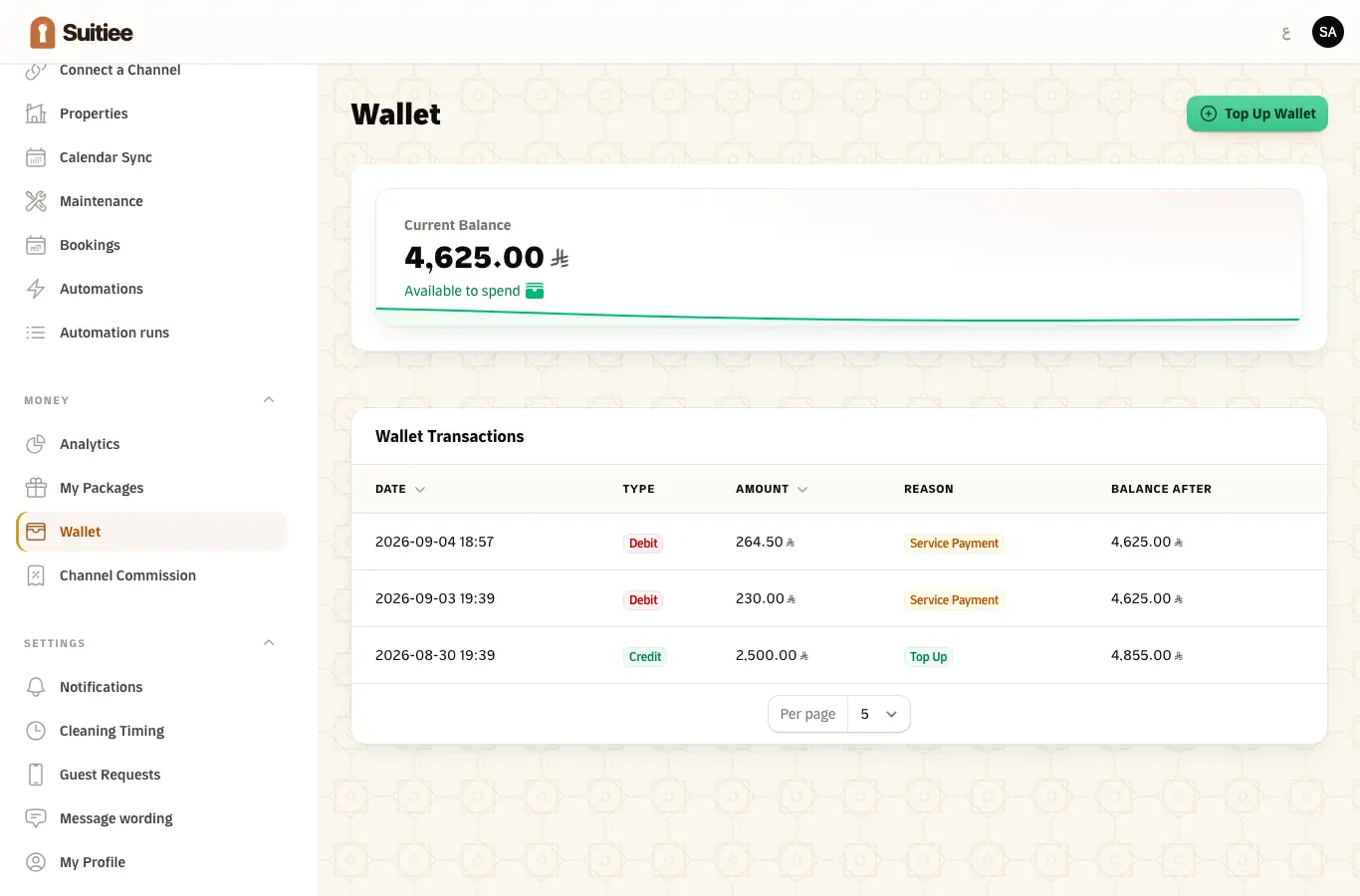
A turnover cannot be dispatched if there is nothing to pay for it with. Two ways to fund it, and they work together:
- Wallet — top up, and each cleaning is debited when it is booked.
- A package — a block of prepaid visits at a lower price per visit. Package visits are used before the wallet is touched.
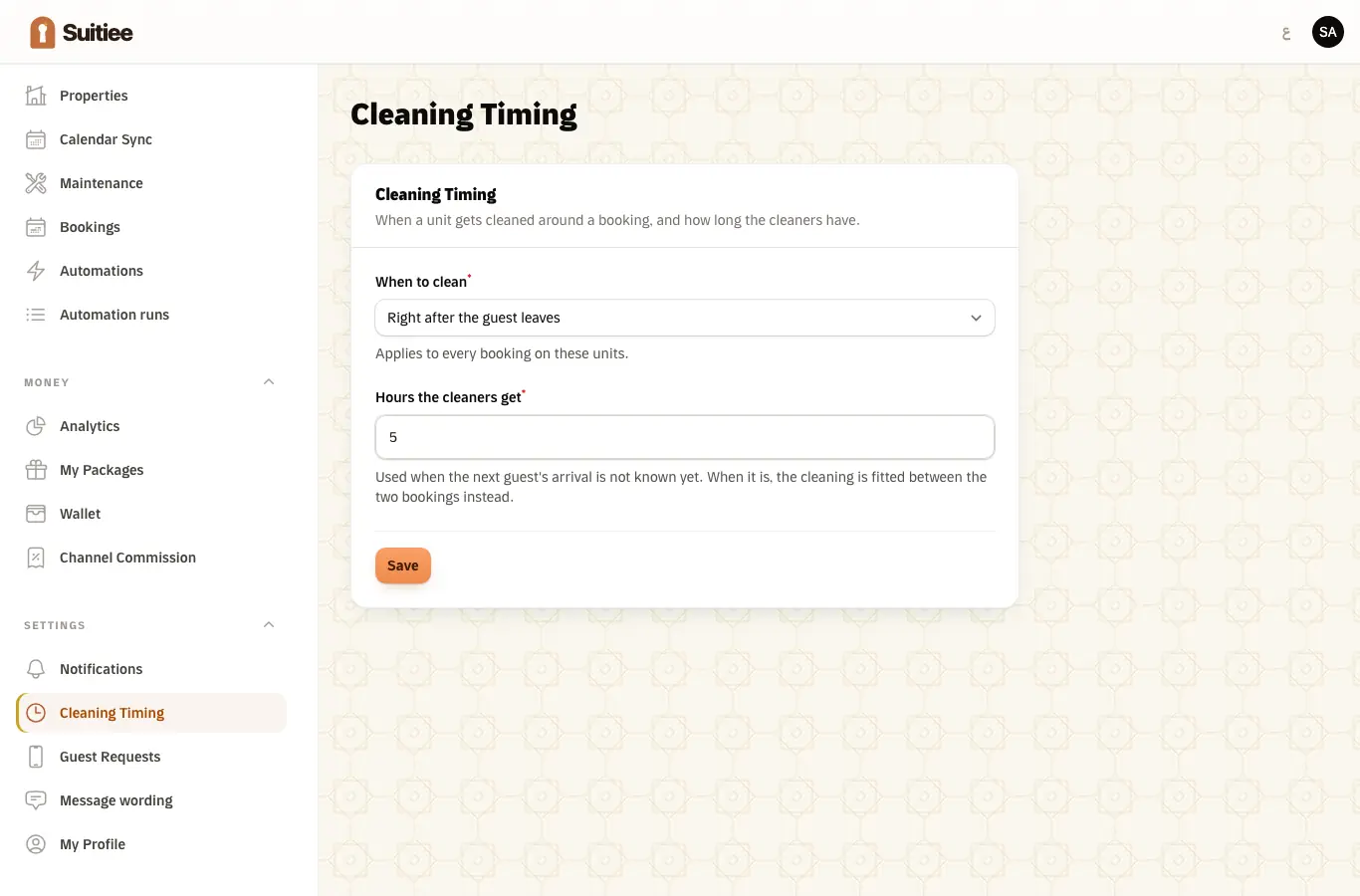
Step 4 — Check the cleaning timing
Cleaning Timing decides when a turnover is scheduled and how long the cleaners get. The defaults are: clean after checkout, and finish before the next guest arrives; if no next guest is known yet, a five-hour window.
Step 5 — Watch the first turnover
From then on nothing needs pressing. A checkout on a connected calendar raises a cleaning, the cleaning is dispatched to a cleaner, and you get the before-and-after photos when it is done.
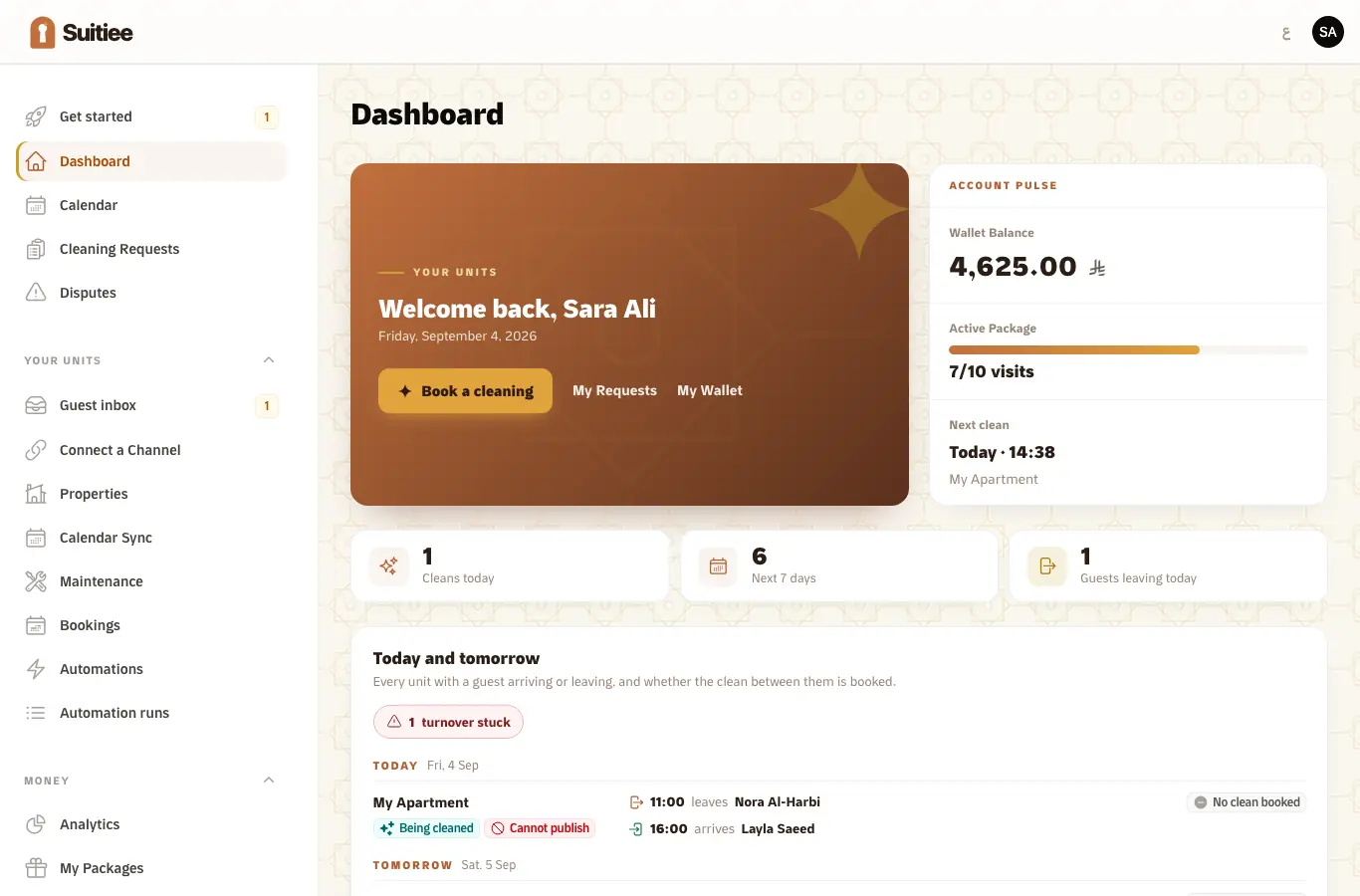
Your dashboard's board shows who arrives, who leaves and whether the clean between them is booked.
When it goes wrong
| What you see | What it means | What to do |
|---|---|---|
| A checkout passed and no cleaning appeared | Usually the wallet could not cover it | Top up; the next check books it automatically. See Turnovers |
| "Bookings without a unit" on the dashboard | A booking arrived whose listing is not matched to one of your units | Open the booking and link it to the unit |
| The calendar link shows Sync failed | The link was regenerated or the listing was unpublished | Get a fresh export link and paste it into Edit on the feed |
| Nothing at all on the calendar | The feed exists but has not run yet, or the channel published an empty calendar | Press Test on the feed row to see what comes back |