
Connecting Airbnb and Booking.com
This is the connection that works in both directions. Bookings, guests and amounts arrive within moments of being made, and the availability, nightly prices and minimum stays you hold in Suitiee are pushed back out to the channel. A night sold on one channel stops being on sale on the others.
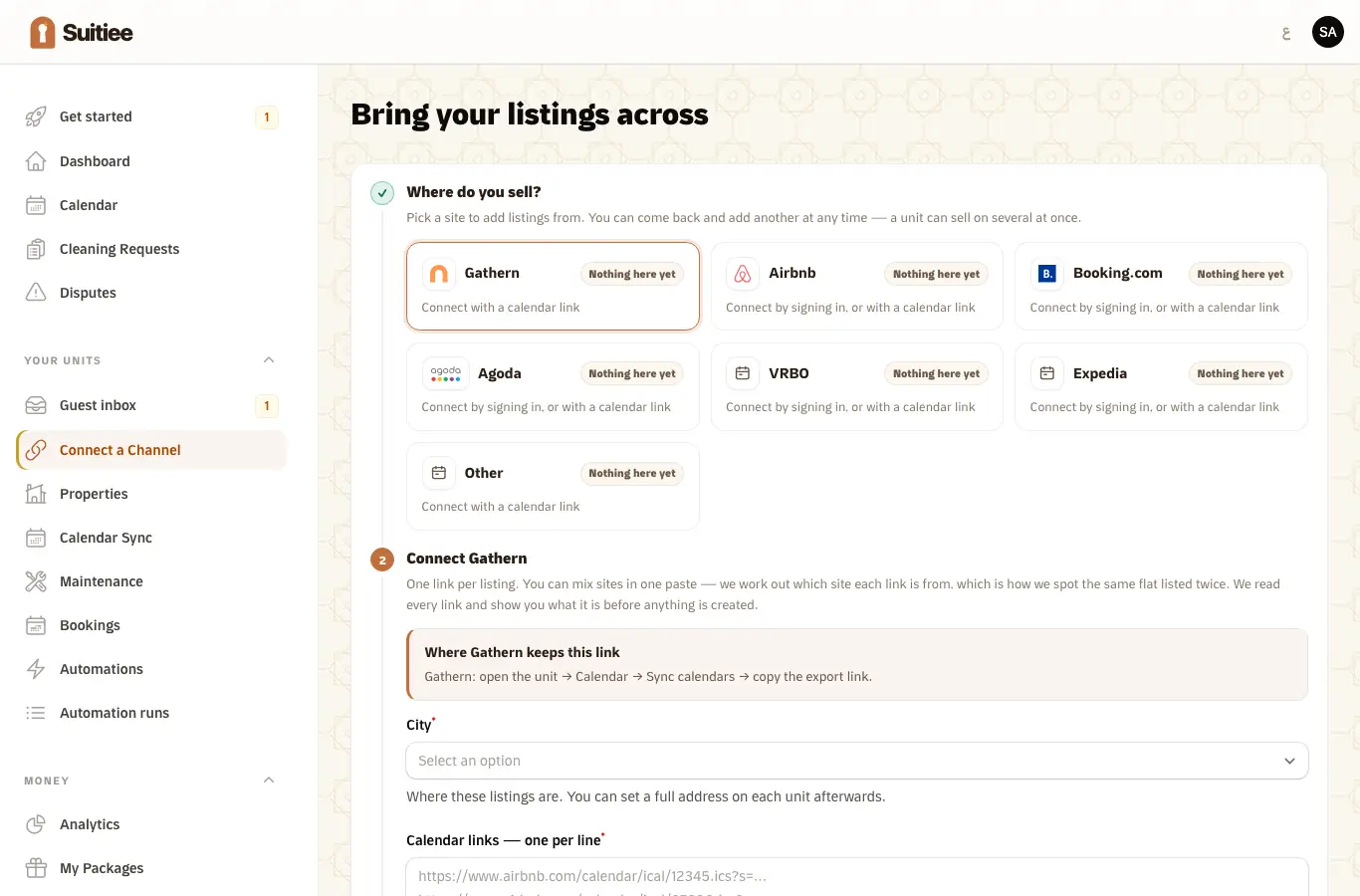
Hosts do this at Your units → Connect a Channel. Operators do it at Channels → Connect. The screen is the same rail either way.
What you need
- An account on the channel that you can sign in to, and the right to connect it.
- For Booking.com: your property ID, the number at the top of your Booking.com extranet next to your property name.
- A unit in Suitiee to attach the listing to, or the willingness to let the import create it.
Step 1 — Pick where you sell
Each card on the rail says what state it is in:
| State | What it means |
|---|---|
| Connected | We are reading this site for you |
| Not confirmed | A unit is set up to sell here, and we cannot see from our side whether it is linked to a listing — open it and check |
| Nothing here yet | You have not brought anything across from here |
Step 2 — Connect it
Airbnb uses a real sign-in. Press Sign in with Airbnb and Airbnb's own sign-in opens in a new window. Your password goes to Airbnb and never reaches Suitiee. Approve the connection there; this page updates by itself when you are done.
Booking.com has no sign-in. Enter your property ID and press Request the Booking.com connection. We send Booking.com the request against that number; you approve it once in your own extranet, and from then on bookings and prices stay in step. Nothing is published to Booking.com until both sides are ready, so your prices and availability there are untouched while you wait.
If the number is not recognised, the request is not sent and nothing is changed — check it against the extranet and try again.
Step 3 — Choose what to bring across
Once the channel answers, your listings appear. Pick the ones to bring across. Each becomes a unit in Suitiee, with its name, its size and its bookings.
One listing stays one unit. A listing that is brought across twice is recognised and not duplicated.
Step 4 — Clear what the connection still needs
A connection can be live and still carry nothing. The Before this carries a booking box on the card names what is outstanding, in plain words. The usual one is:
The unit has to be matched to the room and rate you sell on the channel. Until that is done the connection is live but carries nothing.
Nothing in that box is a step you take alone — it is worked through with us — but it is the first thing to read when a connected channel is sending nothing.
Step 5 — Watch the first booking
A new booking on the channel appears on your calendar and on the board within moments. Its checkout raises a cleaning exactly like any other. See Turnovers.
What is synced, and in which direction
| Direction | |
|---|---|
| Bookings, changes and cancellations | channel → Suitiee |
| Guest name, and contact where the channel shares it | channel → Suitiee |
| The amount the booking is worth | channel → Suitiee |
| Guest messages | both ways — see Guest inbox |
| Availability | Suitiee → channel |
| Nightly price | Suitiee → channel |
| Minimum stay and stop-sell | Suitiee → channel |
Listing content — photos, descriptions, amenities — is not pushed anywhere. Creating the listing itself is still done on the channel.
When it goes wrong
| What you see | What it means | What to do |
|---|---|---|
| "Signing in to this channel is not switched on yet" | That channel's sign-in is not available to you yet | Connect it with a calendar link in the meantime — nothing set up now has to be redone. See Calendar links |
| The sign-in window did not open | The browser blocked the pop-up | Use the "Window did not open?" link on the card |
| "Not confirmed" on a card | A unit says it sells here, but no link to a listing is visible from our side | Open the card and check the mapping; nothing changes if it is already right |
| Connected, and nothing arrives | The unit is not matched to a room and rate yet | Read the Before this carries a booking box on the card |
| A double-booked night | Two channels sold the same night before either heard about the other | The board counts them; open the calendar and cancel one on the channel it was sold on |
| Bookings arrive but land under no unit | The listing id on the booking matches no unit | Open the booking and link it to the unit |