
Guest messages
Suitiee can write to the guest at six points in a stay. Nothing is sent until you switch on the matching rule yourself — a new account sends a guest nothing at all, and that is the default on purpose.
What you need
- Bookings that carry a guest email or phone. A channel connected by sign-in supplies them; a calendar link never does.
- The unit's check-in and checkout times, and its access instructions if you want the access message to be worth sending.
The six moments
| Moment | When it goes |
|---|---|
| Booking confirmed | As soon as the booking reaches Suitiee, with the dates and times of the stay |
| Before check-in | Two days before arrival: when check-in opens, and that the access details follow |
| Check-in day | On the arrival day, with the unit's access instructions as you wrote them |
| Settling in | About three hours after check-in: is anything missing? |
| Before checkout | 18:00 the evening before departure: when to leave, what to do with the keys |
| After checkout | Once the checkout is confirmed: thanks, and a request for a short review |
The middle one is the cheapest thing on this page. Asking "is anything missing?" three hours in is how a problem gets fixed instead of becoming a review.
Step 1 — Write the wording
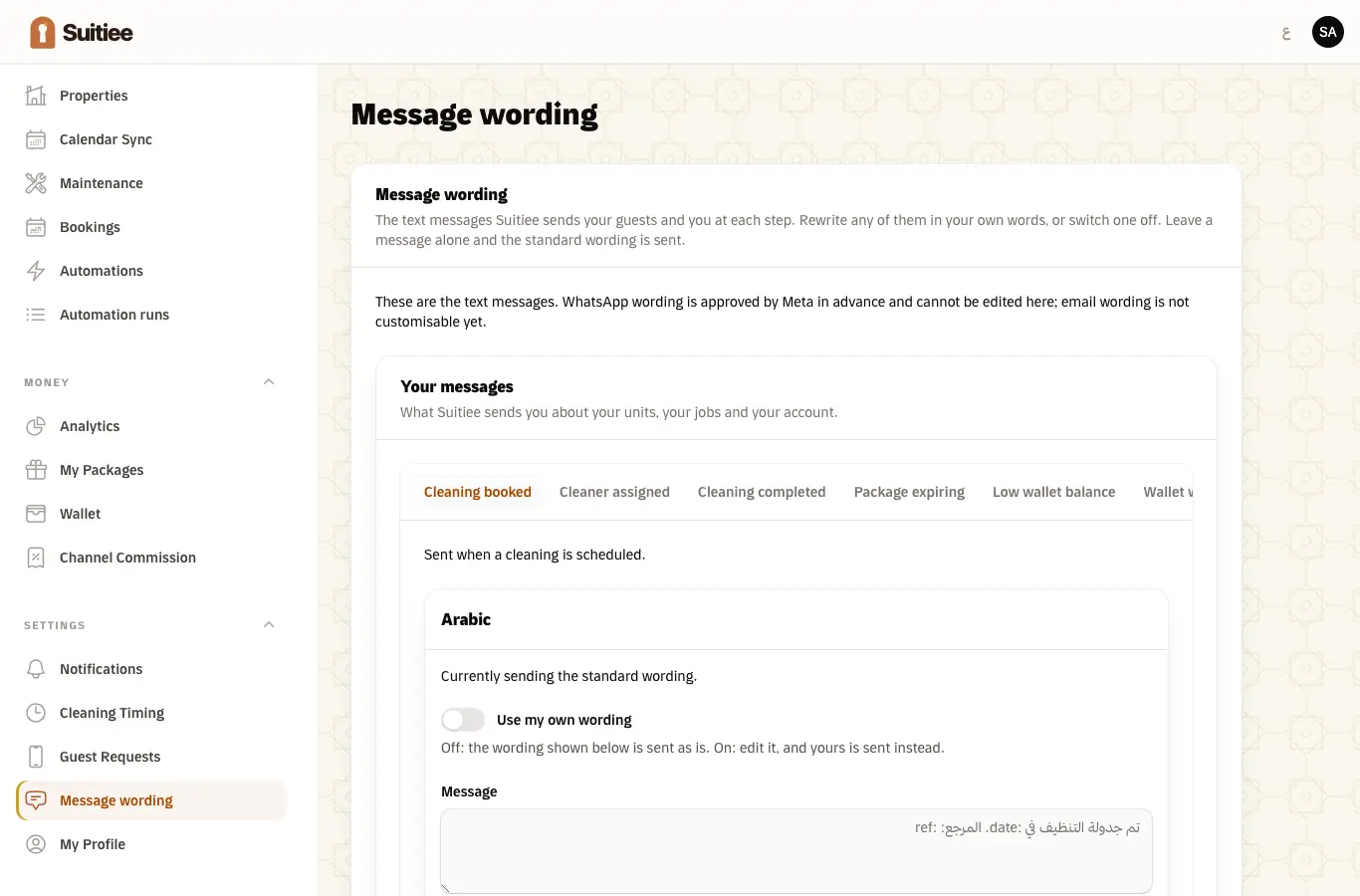
Message wording holds every message Suitiee sends — yours and the guest's — under two headings. The guest ones are the six above.
Leave a message alone and the standard wording is sent. Switch on Use my own wording and edit it, in English and in Arabic, and yours is sent instead. Switch a message off and it is not sent on that channel at all.
Operators write a default for every host they manage; a host can still write their own over it.
Step 2 — Switch the moment on
Wording is not sending. Automations → Start from a recipe copies in one rule per moment — switched off and simulating, so you can read what it would have done before it does anything.
Open the rule, read it, and switch it on when it says what you mean.
Step 3 — Watch the runs
Every rule keeps a log of what it ran and why. That log is the answer to "why did the guest get that?", and to "why did they not?".
Simulate runs a rule against the last fifty real events without sending anything, which is the safe way to check a change.
What the guest sees
Email and SMS, to the address and number on the booking. Not a Suitiee login; there is nothing for a guest to install or sign in to.
Messages to the guest are separate from the inbox threads today — they do not yet appear inside the channel conversation.
When it goes wrong
| What you see | What it means | What to do |
|---|---|---|
| Wording is written and nothing is sent | The rule is not switched on | Automations — the wording screen and the rule are two different things |
| A rule is on and nothing is sent | The booking carries no email or phone | Calendar links carry no guest; connect the channel by sign-in |
| A guest got a message meant for a different unit | The access instructions are written on the unit | Check the unit's own access text |
| The check-in message went at the wrong hour | The unit's check-in time is unset, so a default is used | Set the check-in and checkout times on the unit |
| A message you did not expect | A rule was copied in and switched on | Open Automations, read the run log, switch it off |
| Test bookings triggering guest messages | Test traffic reaches rules unless excluded | Add the Test traffic condition to the rule |